
Necessary settings before launching the bot!!!
Installing and running the bot
Download HoldemBot and unpack the archive to any folder on your disk (except OneDrive). The program does not require installation and is ready to run. The bot is launched by the HoldemBot.exe file (or another if you renamed it). After launch, the bot automatically minimized.
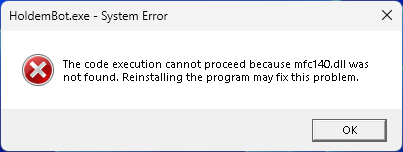
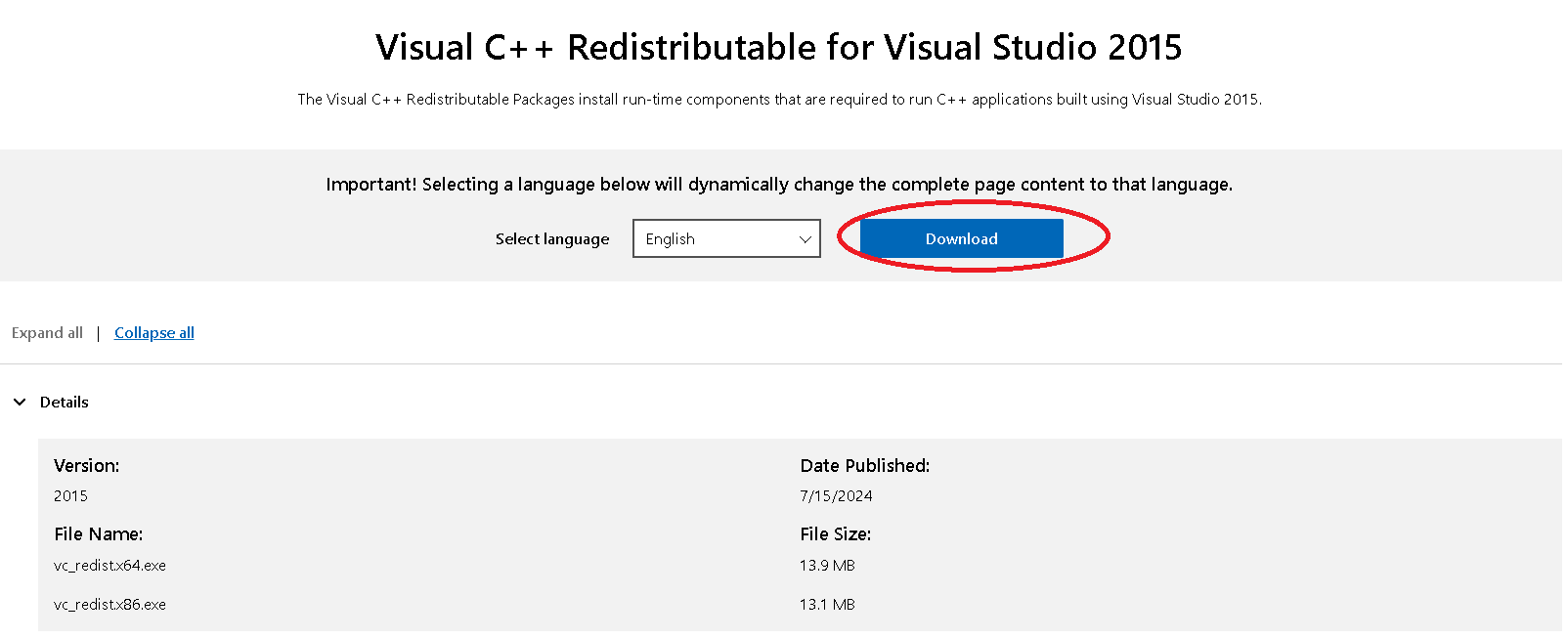
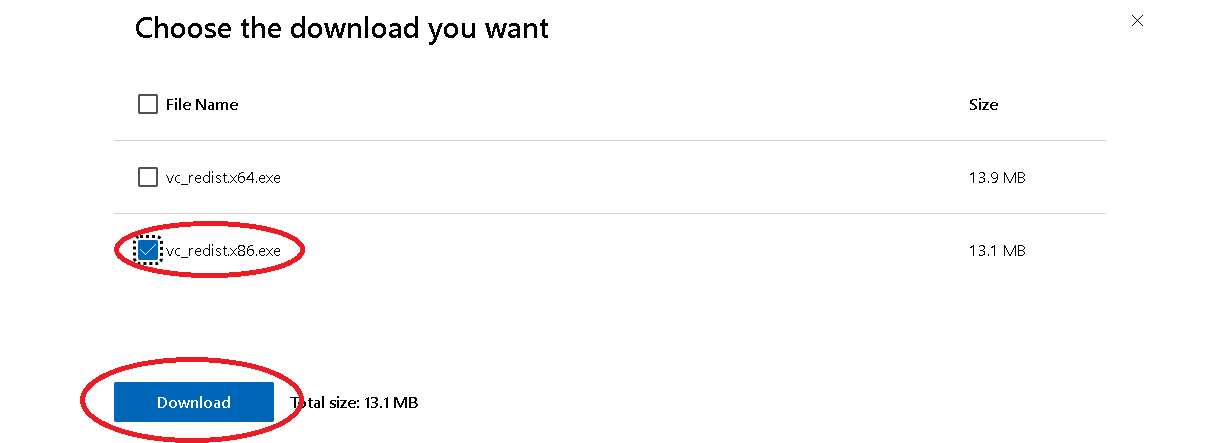
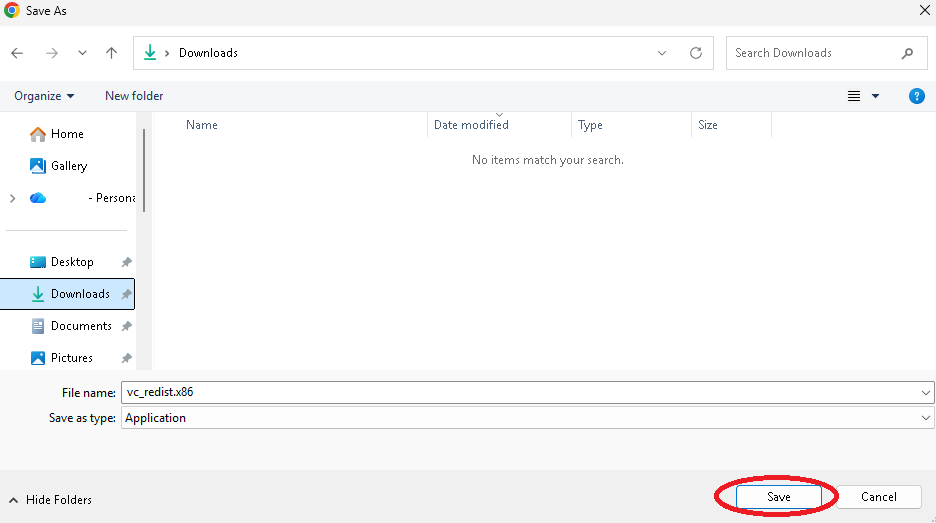
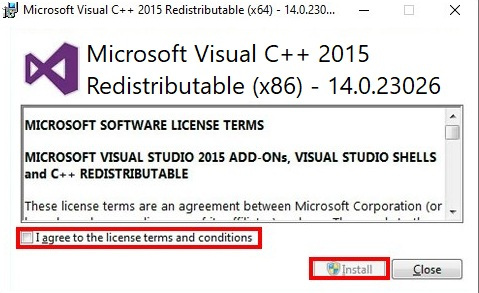
If the bot can’t start because mfc140.dll, MSVCP140.dll or others .dll files is missing from your computer, you need to download and install 32-bit (vc_redist.x86.exe) Microsoft Visual C++ 2015 libraries: https://www.microsoft.com/en-us/download/details.aspx?id=48145
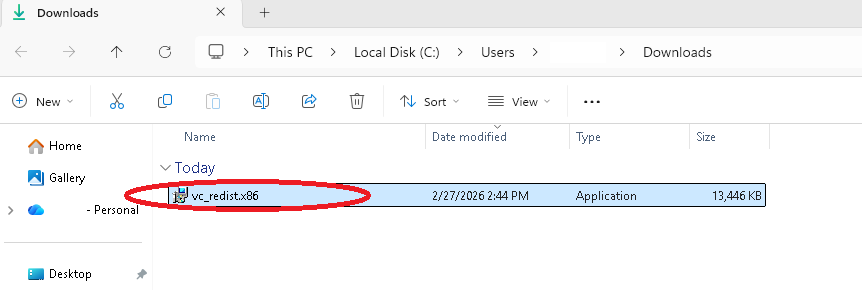
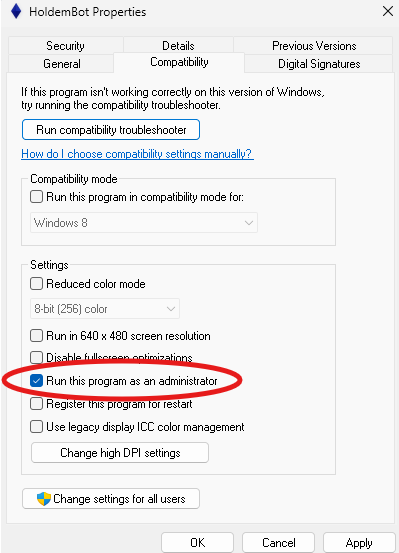
You always need to run the bot as an administrator. For this, right-click on the bot’s .exe file, then click on the tab “Properties” — “Compatibility” — “Run this program as administrator”:
After connecting to the poker table, the autoplayer turns on and the bot starts playing. Enabling / disabling the autoplayer after connecting to the table is configured in the Autoplayer tab. By default, autoplayer is enabled.
You can also turn the Autoplayer on/off while playing on the toolbar (left — enabled, right — disabled):

Configuring the Windows system
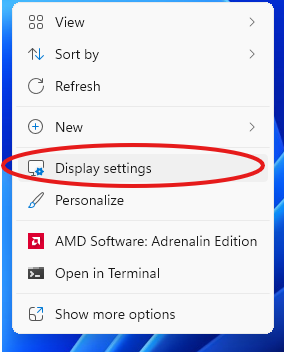
- right-click on the desktop and select Display settings:
- set Scale to 100%:

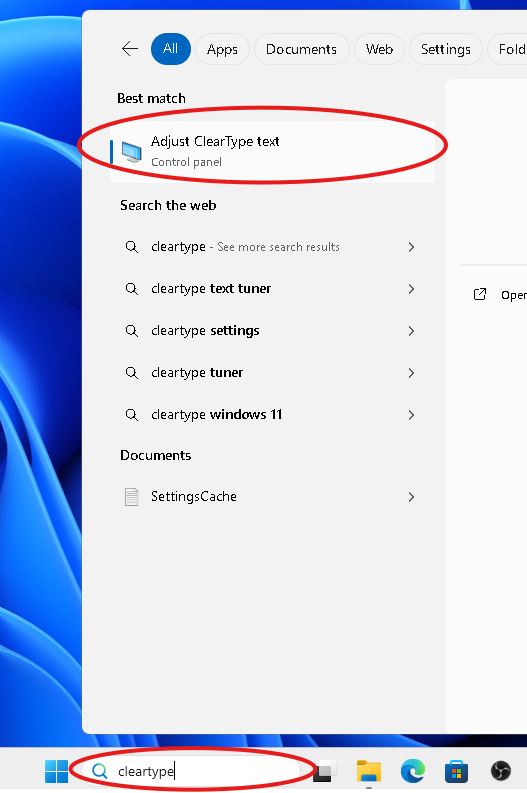
- type «cleartype» in the search box and click «Adjust Cleartype text«:
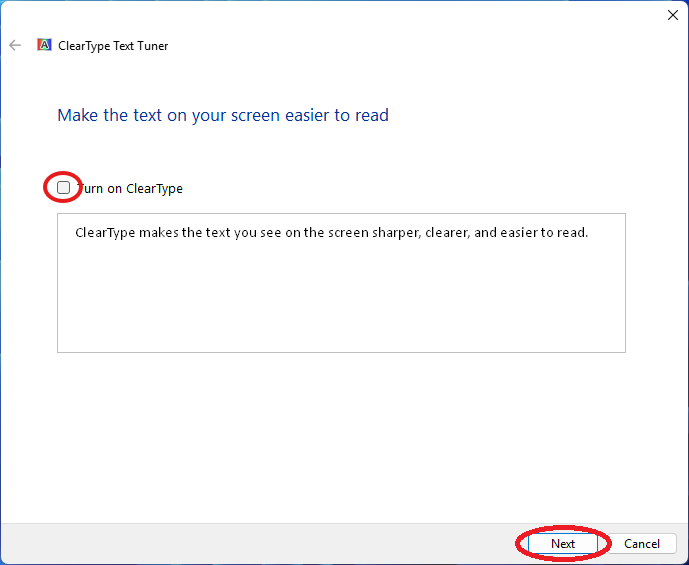
- uncheck «Turn on ClearType» and click «Next» button:
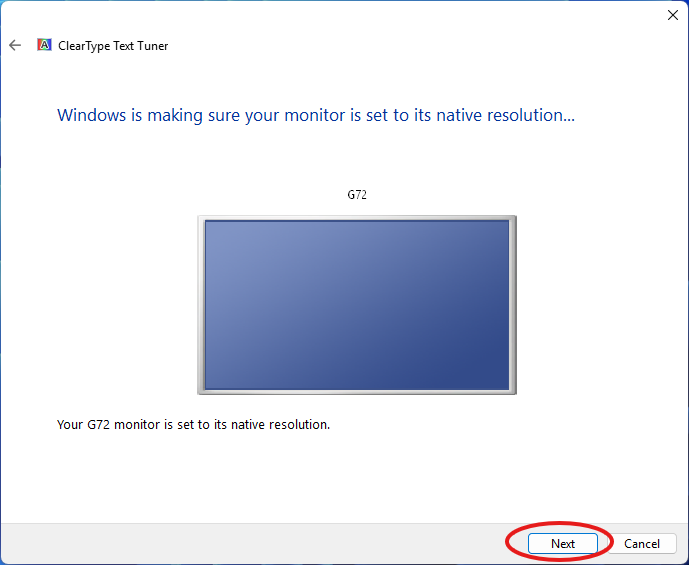
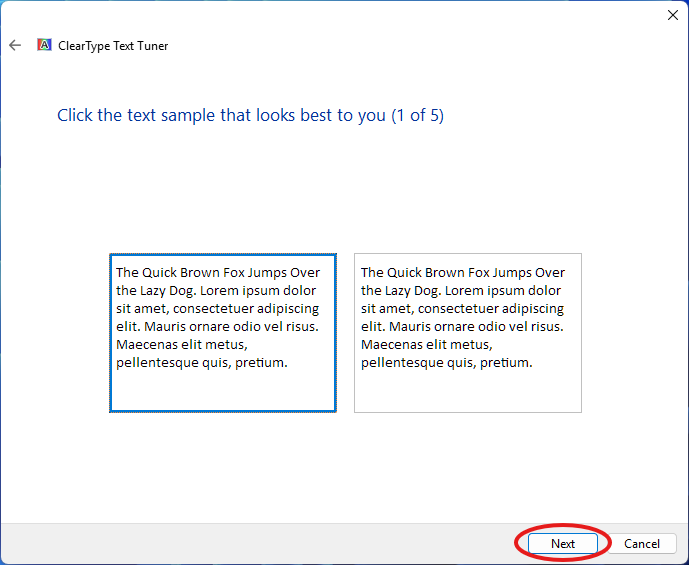
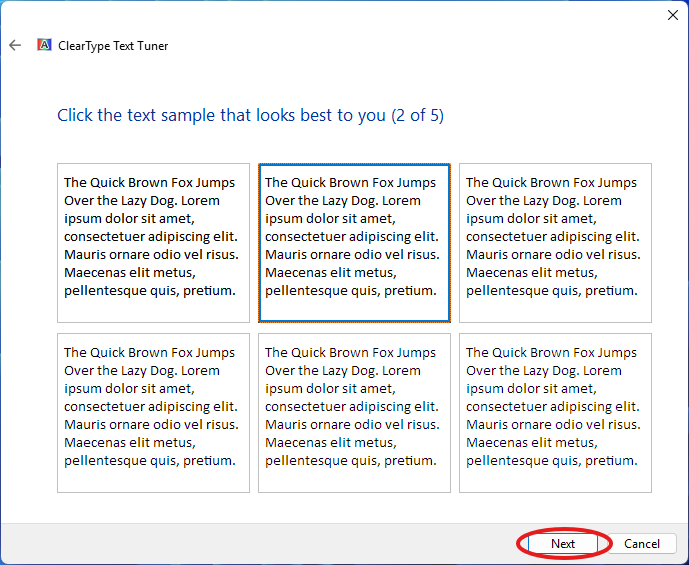
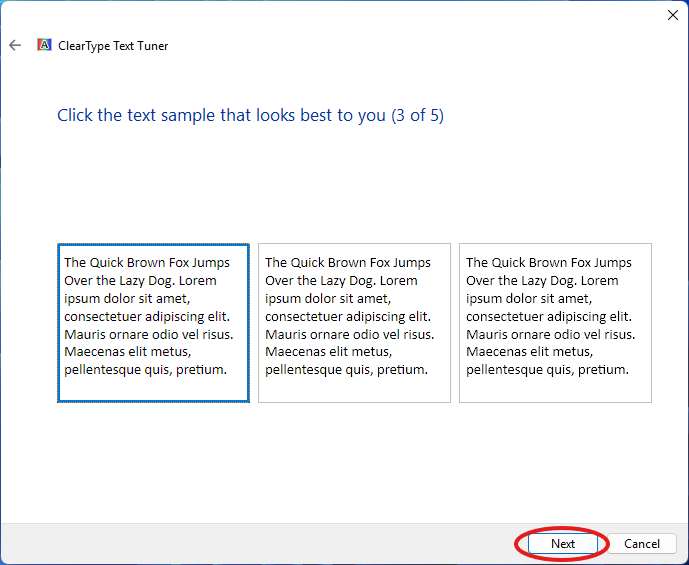
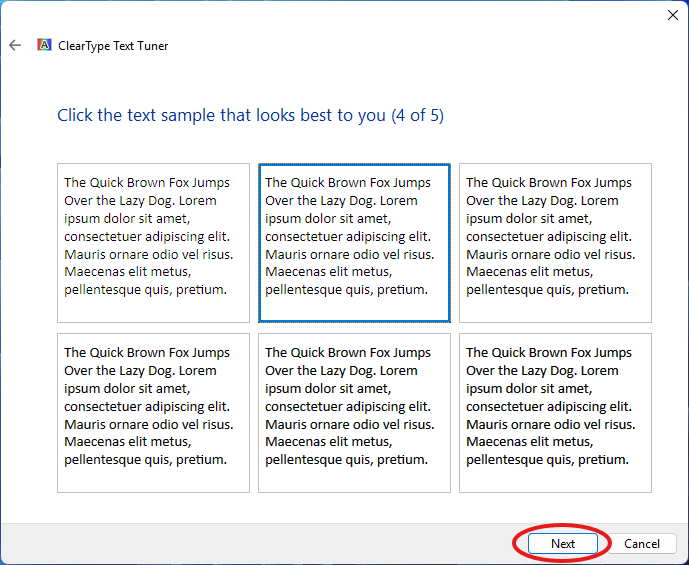
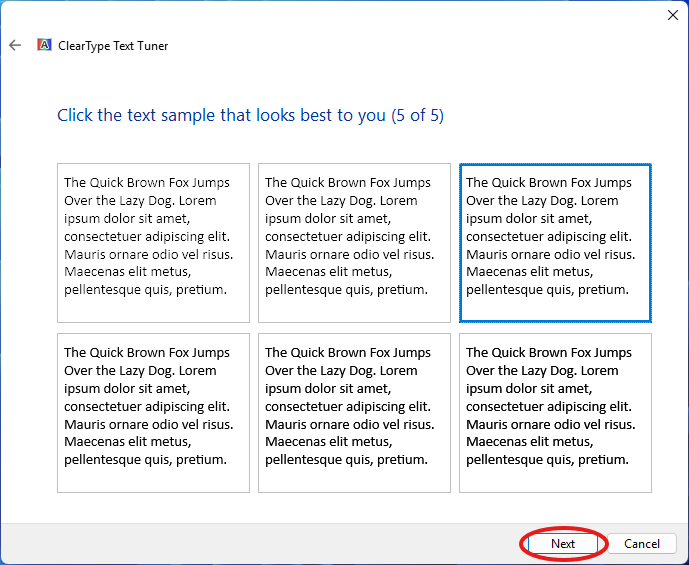
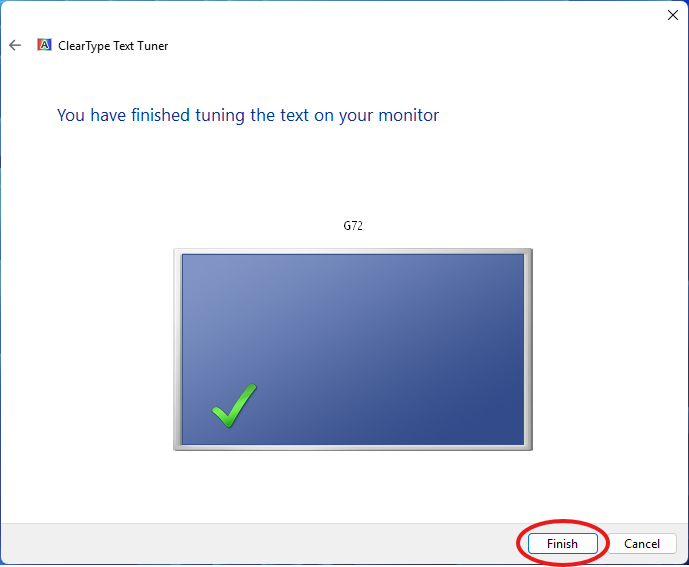
- click «Next» in the next 6 windows, then click «Finish«:
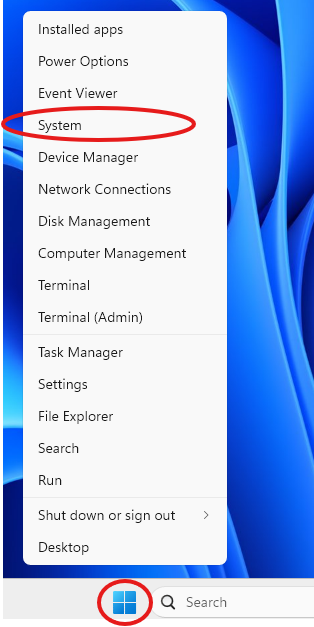
- right-click on the Start button and choose «System«:
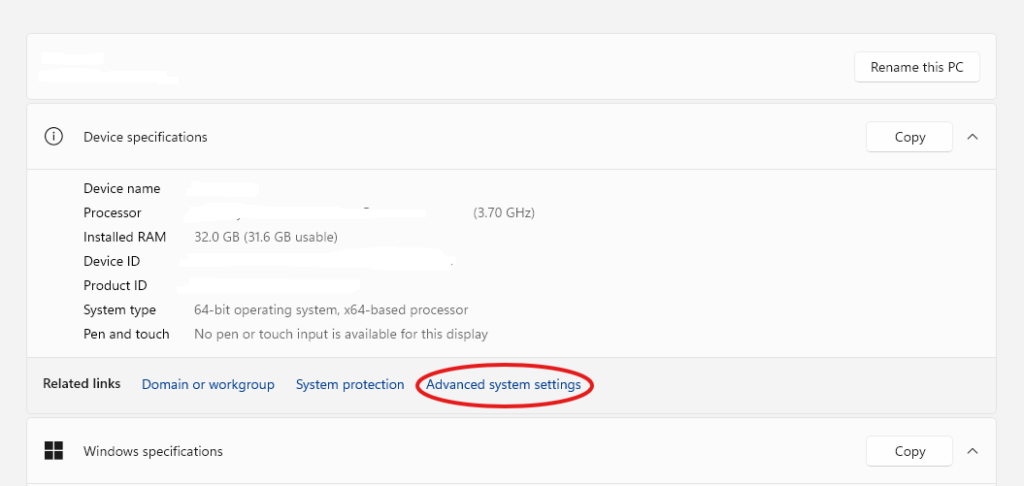
- click on the «Advanced system settings» link:
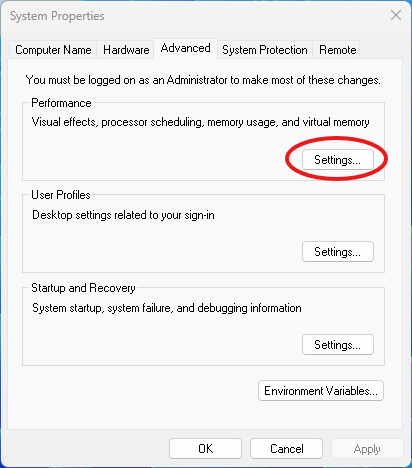
- click on the «Settings…» button in the Perfomance field:
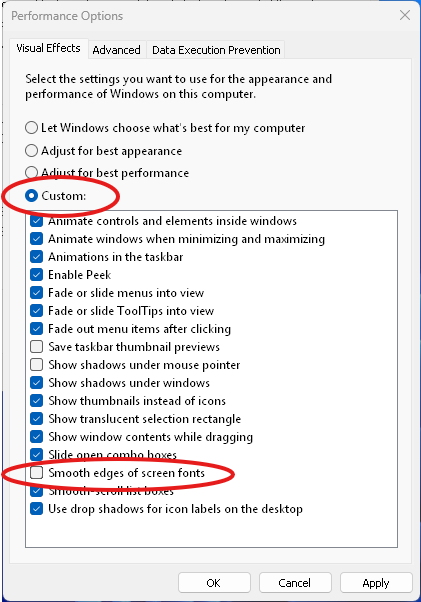
- disable Smooth edges of screen fonts:
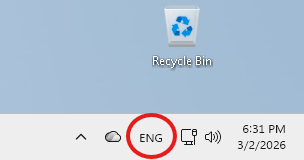
- the keyboard language must be English, while the bot is playing:
Stealth setup
Some poker rooms may have access to the bot’s folder. Therefore, you should deny access to the bot’s folder for the room’s user. You must run the bot as an administrator, and the poker room client as different user.
Create a new user (for Windows 10/11 Pro or Enterprise):
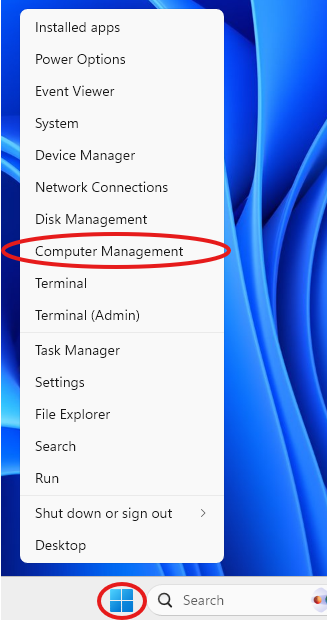
- right-click on the Start button and choose «Computer Management«:
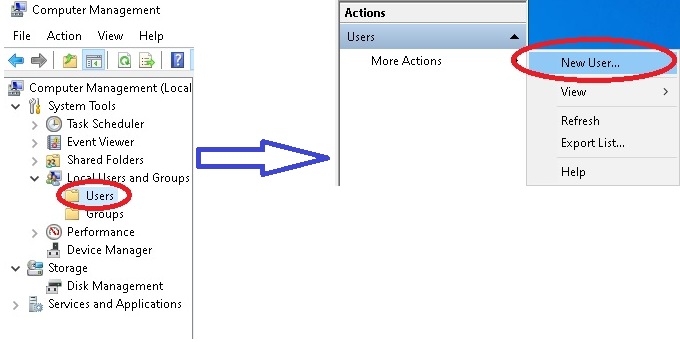
Select «Local Users and Groups» – «Users» – «New User…»:
Enter any username and password. Checkbox «Password never expieres». Click «Create»:
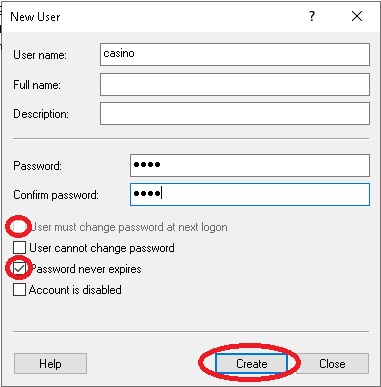
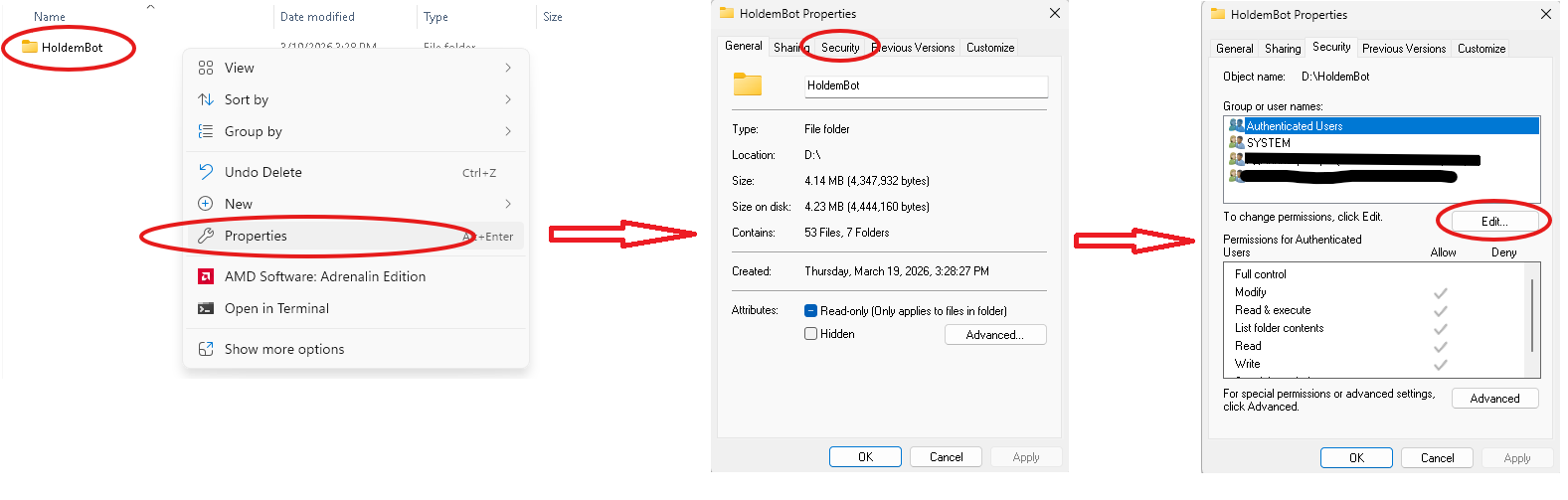
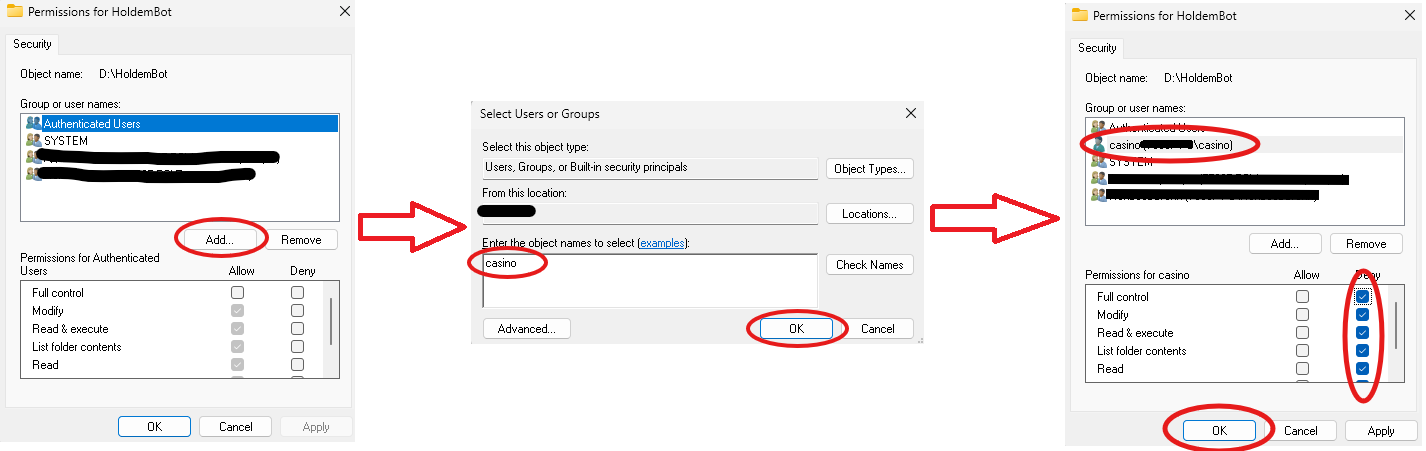
Now go to the properties of the HoldemBot folder (where the unpacked bot files are located). Right-click on the folder and select «Properties«. Next, go to the «Security» tab. Click — «Edit» — «Add«, and enter the name of the newly created user.
Next select a new user and completely deny him access to the bot folder:
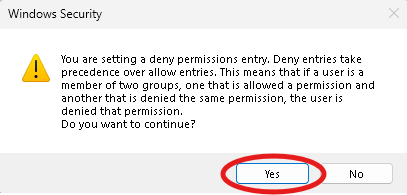
Click «Yes» in Windows Security alert:
The room client must be run as a newly created user (for example, casino).
To run your poker client from the new restricted account:
- hold down
Shift, right-click the poker client shortcut on your desktop - choose Run as different user
- enter the username and password for your newly created user (casino)
Rename the bot files:
Run the RenameTool.exe file from the HoldemBot \tools\ folder. If necessary, enter the correct path to the bot folder in the «holdembot folder» field:
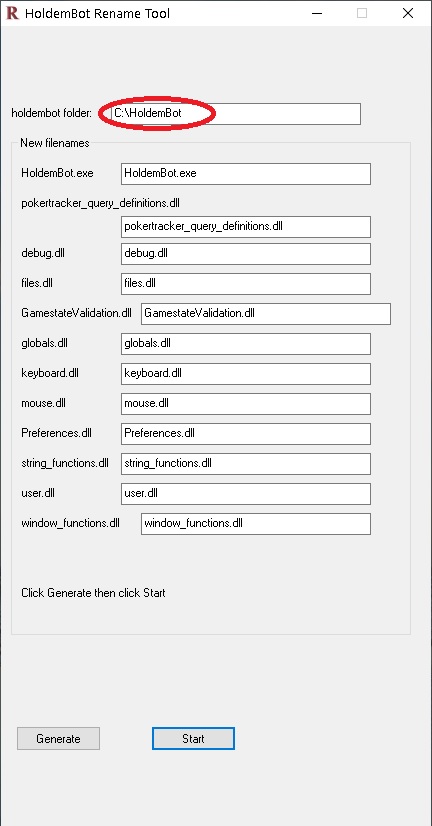
Click «Generate«. Random file names will be generated. You can also set your own file names (the number of characters must match). Now click «Start«. File names will be automatically renamed to new ones.
Rename the bot folder to any other name. Now you can also rename the bot’s .exe file to any other name for better stealth.
Run the bot (HoldemBot.exe or renamed file). Open Edit – Preferences – Stealth in bot menu. Checkbox «Simple Main Window Title».
Change the bot icon:
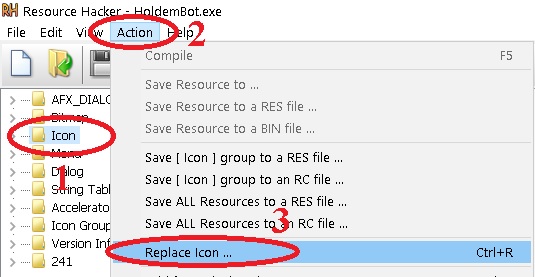
The last step is to change the bot icon. This is for those cases, when the casino tries to make screenshot of your desktop to see what programs are running. We recommend free “Resource Hacker” utility for that: http://www.angusj.com/resourcehacker/
This process is very simple: you just open your bot’s .exe file inside Resource Hacker, then replace icon with any other (you can find it in other .exe file for example), then save .exe file.
By default, the bot window is minimized after startup.
Attention! It is not recommended to keep the bot windows open during the game for security
reasons (they must be minimized).
Congratulations! Now you have set up your bot! Good luck at the tables!